
Before rewriting the prompt for the eighth time, check the plumbing
Before rewriting a working prompt, check its sources, compare a harmless task and ask IT about service health. Sometimes the prompt is fine.
The prompt worked yesterday. Today it fails, so you start editing. More context. Clearer instructions. Perhaps say “please” with greater conviction.
Before you rewrite the whole thing, check whether Copilot can reach the information it needs.
The weekly summary that suddenly stops working
Imagine a manager who uses the same prompt every Friday:
Summarize this week’s emails about the supplier renewal. List decisions, unanswered questions, and deadlines. Link to the messages you used. If you cannot retrieve the messages, say so rather than filling in the gaps.
Last week, useful summary. This week, an error or no usable result. So the manager starts improving the prompt. “Act as an experienced procurement director.” Perhaps that will persuade the email system to come back.
This is an illustrative task, but the underlying failure is real:
Service incident · Microsoft 365 · RESOLVED
Copilot requests could fail when accessing work information
Incident: MO1465074
Status: Resolved · September 3, 2026, 10:00 UTC
Affected scenarios: Copilot prompts requiring Microsoft 365 information, including email; Cowork failures or degraded performance.
Reported cause: A core authentication configuration issue affecting multiple Microsoft 365 services.
Source: Read the resolved NHSmail incident report
Copilot Newsdesk summary of a public report—not a Microsoft error screenshot or a live status alert.
You cannot prompt your way out of a broken connection.
A useful answer depends on more than the model. It may need a document, an email, or another service to respond. If that part is unavailable, asking Copilot to be an even more experienced expert probably won’t help.
Two small checks before the eighth rewrite
First, try opening the relevant email or document directly in Outlook or OneDrive. If that fails too, you have something concrete to report. If it opens, that still does not prove Copilot’s route to it is working.
Then try a request that does not need your work files:
Rewrite this sentence as a short, polite reminder: Please send the agenda before tomorrow’s meeting.
Compare that with a request for one specific work item you are entitled to access:
Summarize the email I selected about the supplier renewal in three bullets. Use only that message. If you cannot access it, say so.
For the second check, select the message through the source picker if your Copilot experience supports it. Simply saying “the email” does not guarantee that Copilot has it. Use an approved workplace account and information your organization permits.
If the rewrite succeeds but the email task fails, you have narrowed the symptom: basic text generation worked, while the source-dependent task did not. That is a clue, not a diagnosis. Permissions, the selected item, your license, the app you used, or a service problem still need checking.
Try all the available models
If Copilot is responding but making a mess of the task, try taking it off Auto before rewriting the prompt again. Microsoft says Auto routes your request to a model based on the prompt. Where your experience offers a selector, choose another available model or response mode and compare the result. Microsoft’s explanation of model selection
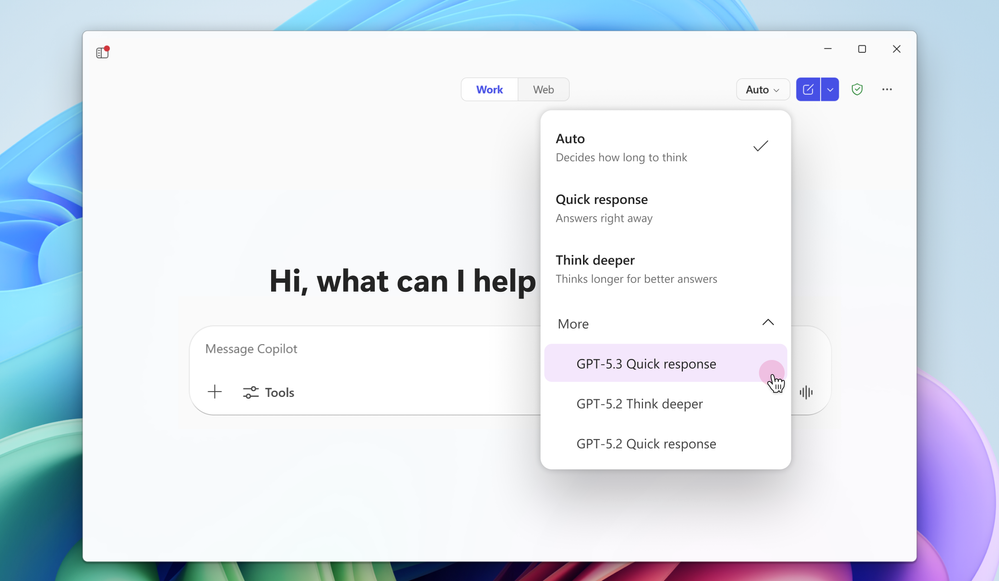
Microsoft’s screenshot from its March 3, 2026 announcement, updated March 4. It shows Auto and manual choices, including named models under More. Those specific model names are a historical example, not a promise of what your menu contains today. Exact image capture date not supplied; viewed September 16, 2026. Original Microsoft announcement
Keep the prompt, selected source, account, and app the same, and try each available model on a small, read-only task. Record which one you selected and whether the answer actually improved. If your menu only offers Quick response and Think deeper, compare those too—but remember that they are response modes, not exact model-version identifiers.
Be aware of their knowledge cutoff dates, especially when the task depends on current rules, regulations, or recent events. Check the provider’s documentation for the exact model when you can identify it. If you cannot verify the model or its cutoff, treat it as unknown. A model’s own answer about its training date is not proof. Supply current, authoritative sources and ask it to cite them; a newer cutoff alone does not guarantee a current answer.
This is a comparison, not a guaranteed fix. A better answer on the second attempt does not prove Auto caused the first failure. And another model cannot grant missing permissions or repair an unavailable email connection. Check any usage charges before repeating metered work, and don’t rerun an action that may already have sent a message or changed a file.
Let another AI take a pass at the prompt
If you have access to another approved AI assistant, ask it to rewrite the prompt. A second model may spot an unclear instruction, a missing detail, or conflicting requirements you have stopped noticing after staring at it all morning.
Rewrite the prompt below to make the task, required sources, and expected output clearer. Preserve my intent and constraints. Do not invent facts or add requirements. If information is missing, flag it for me rather than guessing. Show the revised prompt and briefly explain what you changed. Prompt: [paste your prompt here]
Use only information your organization permits in that assistant. Replace confidential names and details with placeholders; don’t move work documents into a personal AI account just to troubleshoot a sentence.
Read the rewrite before trying it, then compare it with the original using the same model and sources. Keep whichever works better. A more elaborate prompt is not automatically a better one—and neither version can fix a service that is down.
This is the screen to ask IT to check

Microsoft’s documentation example, displaying February 11, 2025—not a live status report or a screenshot from our organization. The red boxes are part of Microsoft’s original image. Source: Microsoft 365 monitoring documentation. Viewed September 16, 2026; exact capture date not supplied. Select the screenshot to enlarge it.
An authorized administrator can open the Microsoft 365 admin center and go to Health → Service health. Ask them to check Copilot and relevant services such as Exchange Online, then read the incident’s affected scenarios and timestamps. The screenshot’s separate sections also help distinguish something Microsoft is investigating from something your organization needs to fix. Some detailed monitoring features have additional eligibility requirements. Microsoft’s service-health instructions
Save the evidence before rewriting everything
When a familiar task unexpectedly fails, note the time, the Copilot surface and the actual error. Check whether you can open the source material directly. Try a small, harmless request to see whether the failure is broad or specific to the task.
You may still need help diagnosing it. At least now your support team has something more useful to work with than “AI is broken.”
Check public service information for context, then ask your administrator to check the service health relevant to your organization. Another organization’s incident report does not prove yours is affected. The absence of a public alert does not prove the problem is your prompt, either.
For a workflow that sends, changes or creates something, check whether the action already happened before trying again. An error message is not a reliable excuse for sending the same message three times.
Keep a copy of the working prompt while you investigate. Otherwise, you can spend an afternoon rewriting instructions around a temporary failure, then have to work out which version was good in the first place.
Check the plumbing before you remodel the bathroom.