
What the heck is “work content”?
Add work content, upload a file, or attach from OneDrive? Here’s what the choices mean—and why browser, app and Teams instructions can differ.
You’re at work. You have a work document. Copilot offers Add work content, Upload images and files, and Attach cloud files.
Aren’t those all work content?
Fair question. The labels describe different ways of finding information, but they leave the employee to translate the menu before getting anything done. Then a button changes name or location, and yesterday’s instructions become today’s scavenger hunt.
Here’s how to make sense of it.
Three choices, in ordinary language
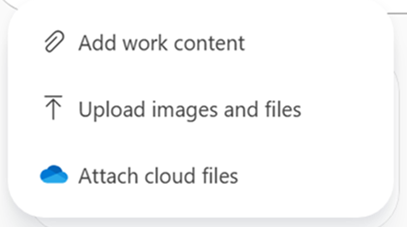
Screenshot from page 19 of the publicly hosted Copilot Chat training deck prepared for PSU, April 2026. Exact capture date and license are not shown. Your menu may differ.
- Add work content: find and select work sources available through Copilot’s work-source menu. Think “help me find the material to reference.” The choices depend on your access and setup; this isn’t permission to read everything in the company.
- Upload images and files: open your device’s file picker and select something to upload. Think “I have the file right here.” Uploading from your computer does not mean the analysis stays on your computer.
- Attach cloud files: open the OneDrive file picker to select a cloud file, including available shared files. Think “use the document we already keep online.”
Those routes come from Microsoft’s attachment instructions. They can overlap in what you find. A document in OneDrive can also appear in a synced folder on your computer. It hasn’t become two different kinds of work because Microsoft gave you two doors to reach it.
Which one should you use?
Start with the copy you intend to analyze.
If HR keeps the approved onboarding checklist in OneDrive, select that cloud document. There’s no need to download it first just to upload it again. Check its location and version; don’t assume an old chat answer updates when someone edits the source.
If Finance needs to compare two monthly exports saved on a computer, upload those particular files and identify the periods in the prompt. If you supply a revised export later, make that change explicit.
If you need to locate work material through Copilot, try Add work content. If it isn’t available or doesn’t find the file, check the account, permissions, and available features. A work login alone does not establish the exact license.
“Final,” “Final revised,” and “Final THIS ONE” are not a document-management strategy. AI has not fixed that for us.
Browser, app, or Teams: does it matter?
First check which Copilot you opened. “I’m in Teams” doesn’t quite settle it.
- Browser: use your organization’s Microsoft 365 Copilot Chat, signed into the intended work account. The consumer Copilot website is a different experience.
- Microsoft 365 Copilot app: another way into workplace Copilot Chat. Match the account and selected experience before comparing it with the browser; don’t assume the menu will occupy the same spot.
- Teams: opening the main Copilot Chat app is different from opening Copilot inside a particular chat, channel, or meeting. That second route brings the surrounding conversation into the task.
Microsoft documents Copilot Chat across its apps, and separately explains that Copilot within a Teams chat uses the message thread. Its Teams guidance also warns that this experience cannot summarize files shared in the thread. A file posted in a conversation is therefore not something you should assume has been attached for analysis. Copilot Chat basics · Copilot inside Teams conversations
For a document exercise, get everyone into the main workplace Copilot Chat, select the intended file, and check that it appears in the prompt. For a conversation summary, use the relevant Teams experience. These entry points don’t give us a universal, fixed set of three upload menus; account, license, selected experience, and rollout can all matter. We haven’t tested an identical account across all three here.
Same logo. Different starting point. Apparently “open Copilot” needs a second sentence.
And where did the button go?
Even the attachment control has a history. A University of Virginia guide from April 2025 shows a paperclip. Microsoft’s current instructions describe a plus control labeled Add and manage sources. These are dated examples from different interfaces, not proof that every account changed at the same time.
That is why “click the third icon at the bottom left” is a fragile training instruction.
For attachments and the other controls around the conversation, teach the action as well as the position:
- Adding information: look for the attachment or source control near the message box. On a computer, hover over an unfamiliar icon to read its label before selecting it.
- Starting over: look for New chat. Returning to an old conversation is a different action; make sure you’re in the conversation you intended.
- Choosing a tool or mode: read the visible label and available choices. Selecting how Copilot should work is different from selecting the files it should use. Don’t assume a familiar-looking button gives every account the same capabilities.
- Following a screenshot: first match the product, account type, and surface—browser, app, or Teams. If the layout differs, find the named action rather than clicking the same coordinates. If it is absent, check current help or ask support before concluding that you missed something obvious.
For anyone writing instructions, put the app and date beside the screenshot. “Choose the attachment control, shown here as a plus” will age better than a lonely red arrow.
Check what actually got attached
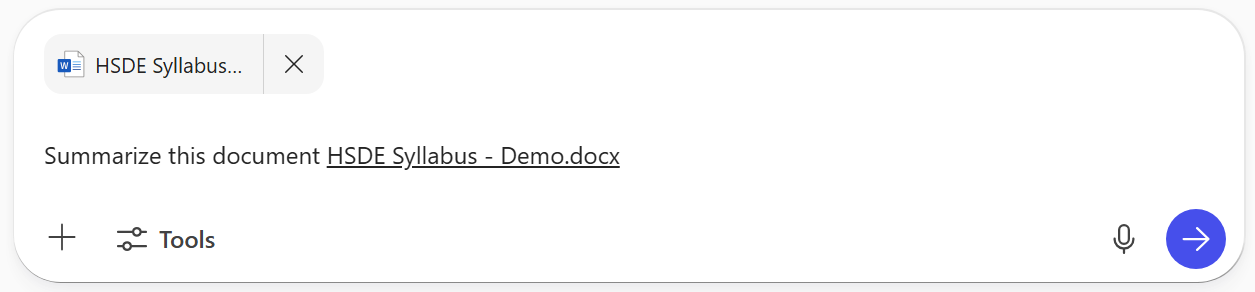
Attachment example from the same PSU-hosted April 2026 deck, page 19. Exact capture date unknown. It illustrates a selected file, not a guarantee that all its contents are readable.
Look for the file’s attachment chip and check its name. Start with one relevant document and a specific request. Open the source to verify the important details in the answer. If the file cannot be read, check the format, permissions, and error message before adding more files. Microsoft’s troubleshooting guidance
The employee came to get something done. They shouldn’t need a vocabulary lesson and a treasure map first.
Microsoft, name the action clearly. And when you move it, leave directions.